Appearance
Logging time
Here is a guide on how team members can complete their own timesheets. Additionally, it'll take you through how to log time for external third parties such as design partners or contractors.
Completing your own timesheet
Firstly, click on the Timesheet tab on the main dashboard. You will be able to log time for each day of the week.
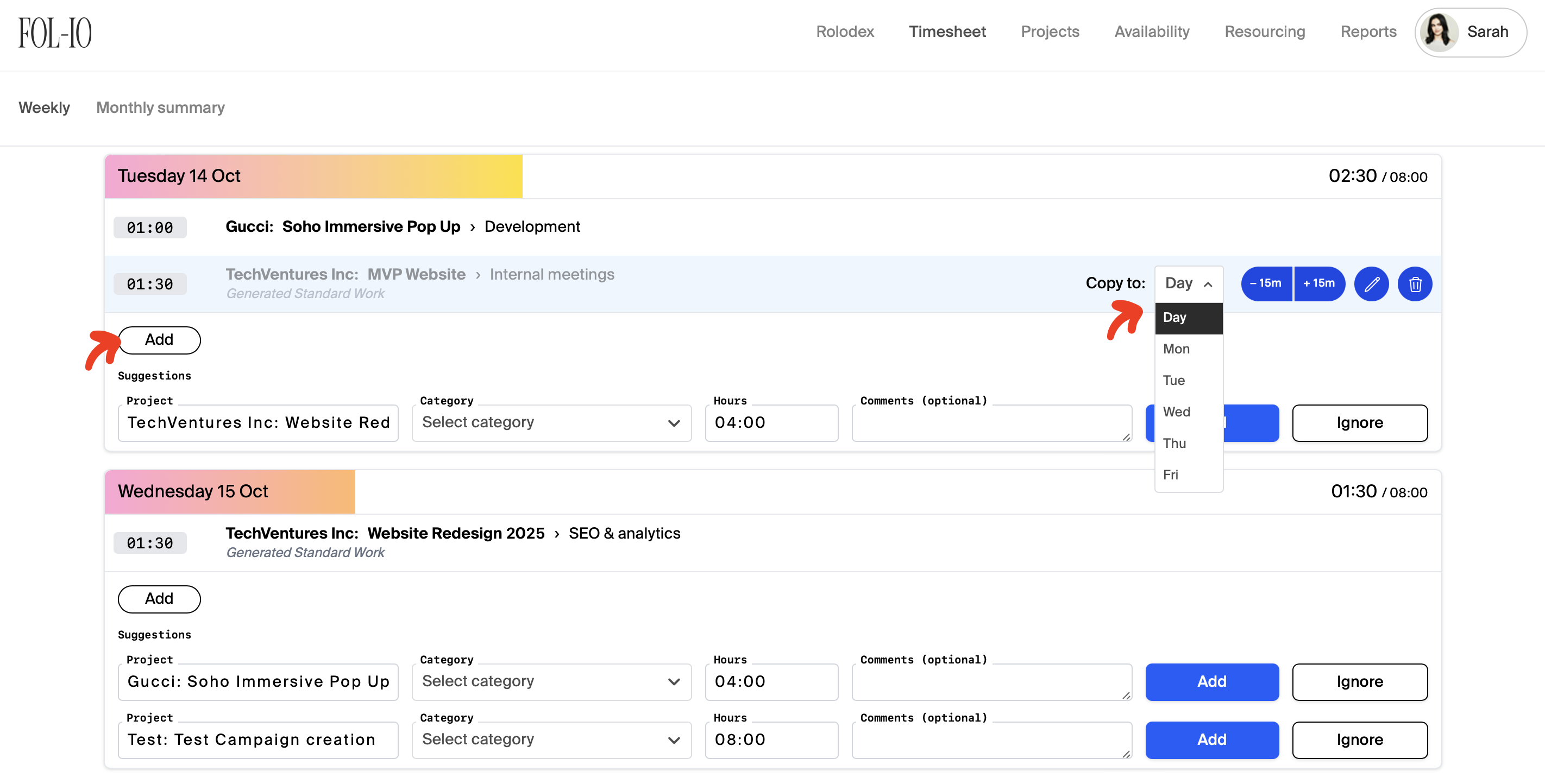
Click Add and complete all the necessary information; project, category, hours and comments (if any). The comments field is generally helpful when the category selected is general or non-specific such as Other - in which case you'd be able to elaborate here.
A useful, time-saving feature is the ability to copy over entries to a different day of the week.
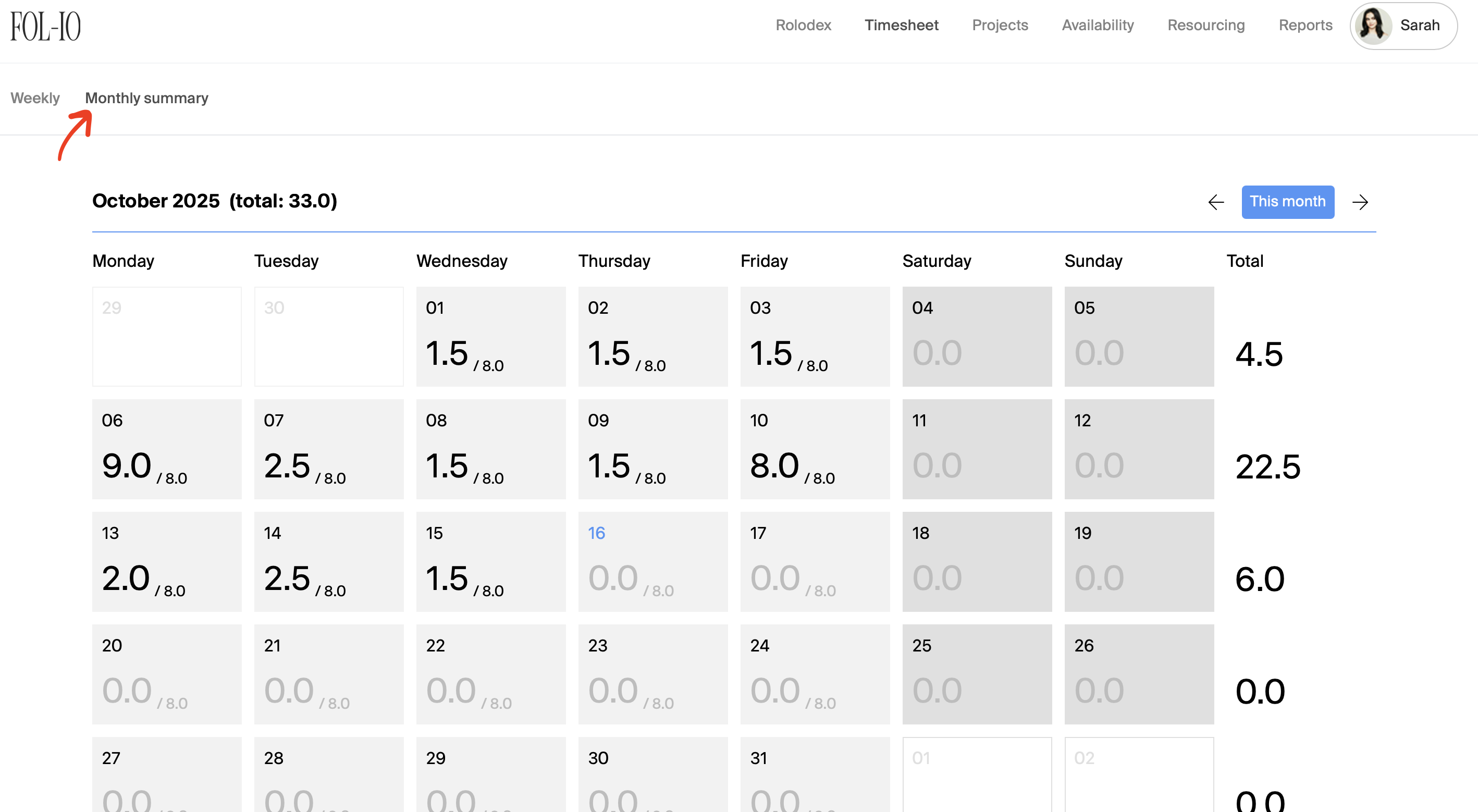
If you would like to see a monthly overview of your time logged, click on the Monthly Summary tab -
Logging time for external parties
Time for external parties is logged slightly differently due to their not having access to the Portal and that the full time spent is more commonly shared at project completion. Therefore, the time would need to be logged at the end of the project rather than throughout.
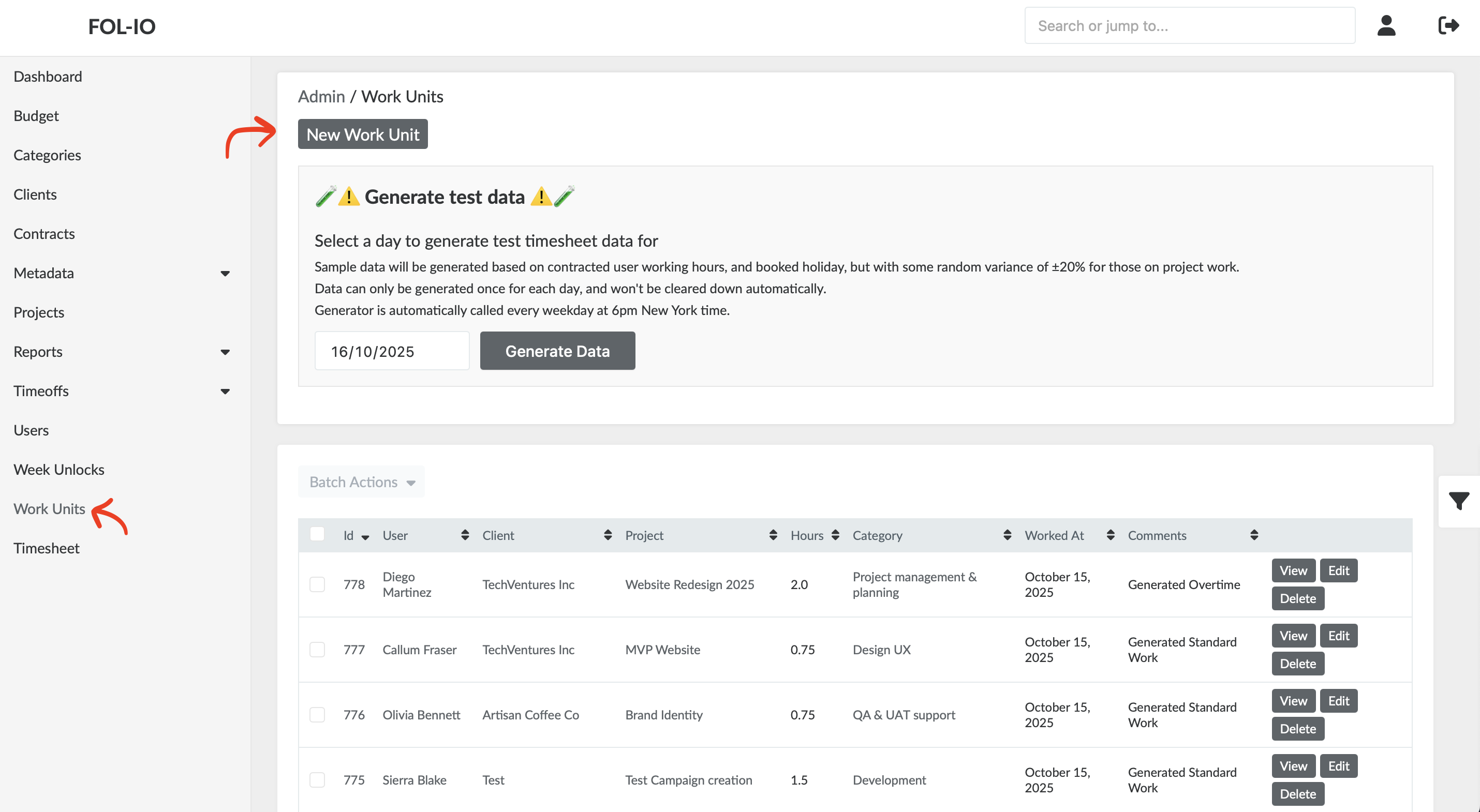
To do this, go to the Admin dashboard and click on Work Units. From there, you'll be able to click New Work Unit to add a new entry. This will then be added to the overall logged time of the project.